> ## Documentation Index
> Fetch the complete documentation index at: https://support.betalented.ai/llms.txt
> Use this file to discover all available pages before exploring further.
# Review and invite talent
> View job details, review talent matches, invite candidates, and manage your applicant pipeline.
Once your job post is live, the platform automatically matches candidates from its talent pool. This page covers how to review matches, send invitations, and manage applicants through the hiring pipeline.
## View job details
Click on any job card from the Talent Attraction dashboard to open its detail page.
 The detail page includes:
* **Job header** — Title, vacancy count, salary range, and requirements at a glance
* **About the job** — Full description and skill requirements
* **Match and applicant tabs** — Quick access to candidate pools
***
## Review talent matches
The platform identifies candidates whose skills align with your job requirements. Matches are split into two categories:
Jobs will be posted to e2i and automatically matched with the e2i talent pool. If this is an e2i exclusive job posting. Suitable candidates are currently being matched via the e2i team. So if you're not a part of e2i Partner Employer, you will see this:
The detail page includes:
* **Job header** — Title, vacancy count, salary range, and requirements at a glance
* **About the job** — Full description and skill requirements
* **Match and applicant tabs** — Quick access to candidate pools
***
## Review talent matches
The platform identifies candidates whose skills align with your job requirements. Matches are split into two categories:
Jobs will be posted to e2i and automatically matched with the e2i talent pool. If this is an e2i exclusive job posting. Suitable candidates are currently being matched via the e2i team. So if you're not a part of e2i Partner Employer, you will see this:
 Learn more about [match score](/getting-started/understanding-match-score).
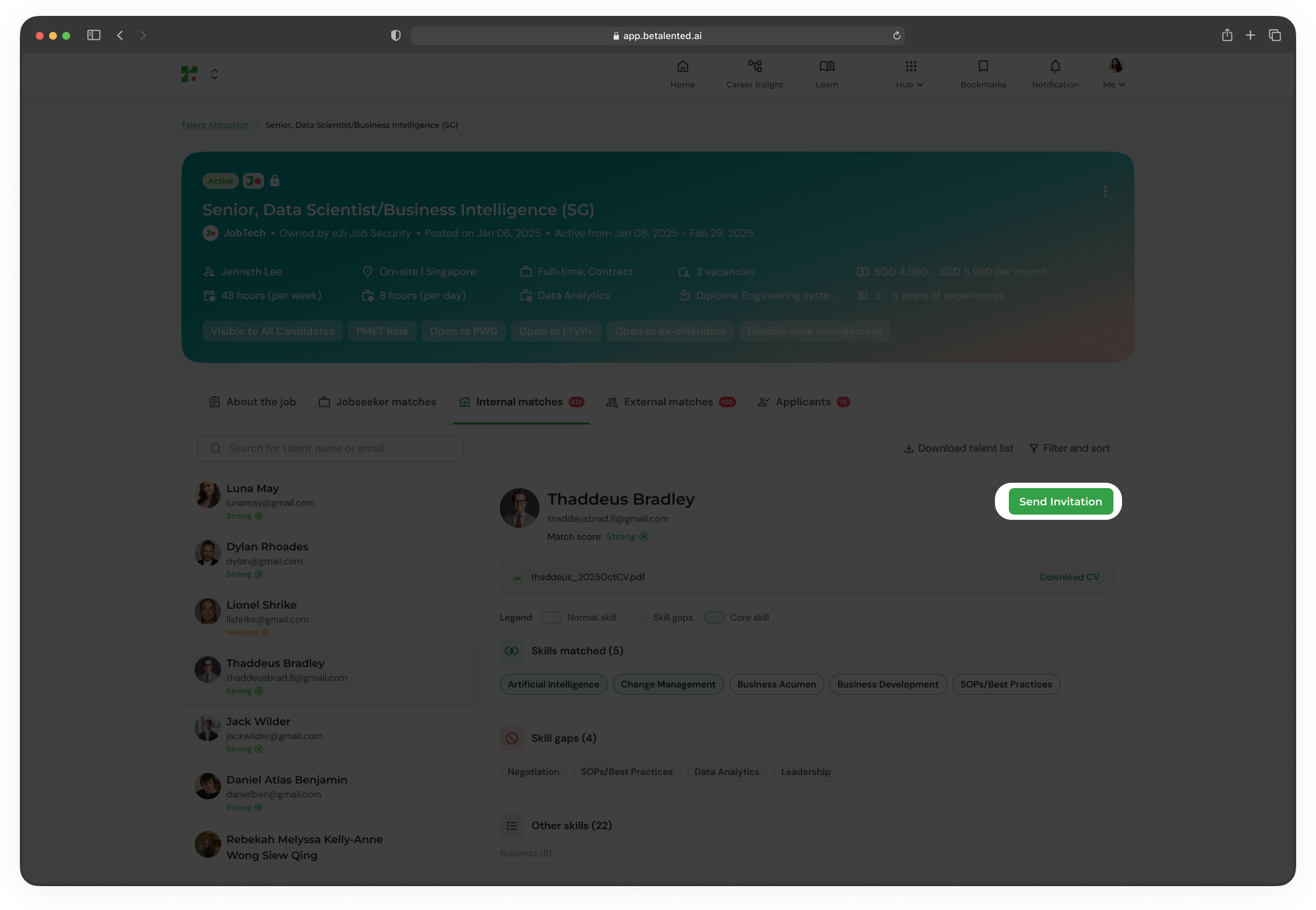
Existing employees within your organisation who have the skills for the role. Internal matches are displayed with match scores.
Learn more about [match score](/getting-started/understanding-match-score).
Existing employees within your organisation who have the skills for the role. Internal matches are displayed with match scores.
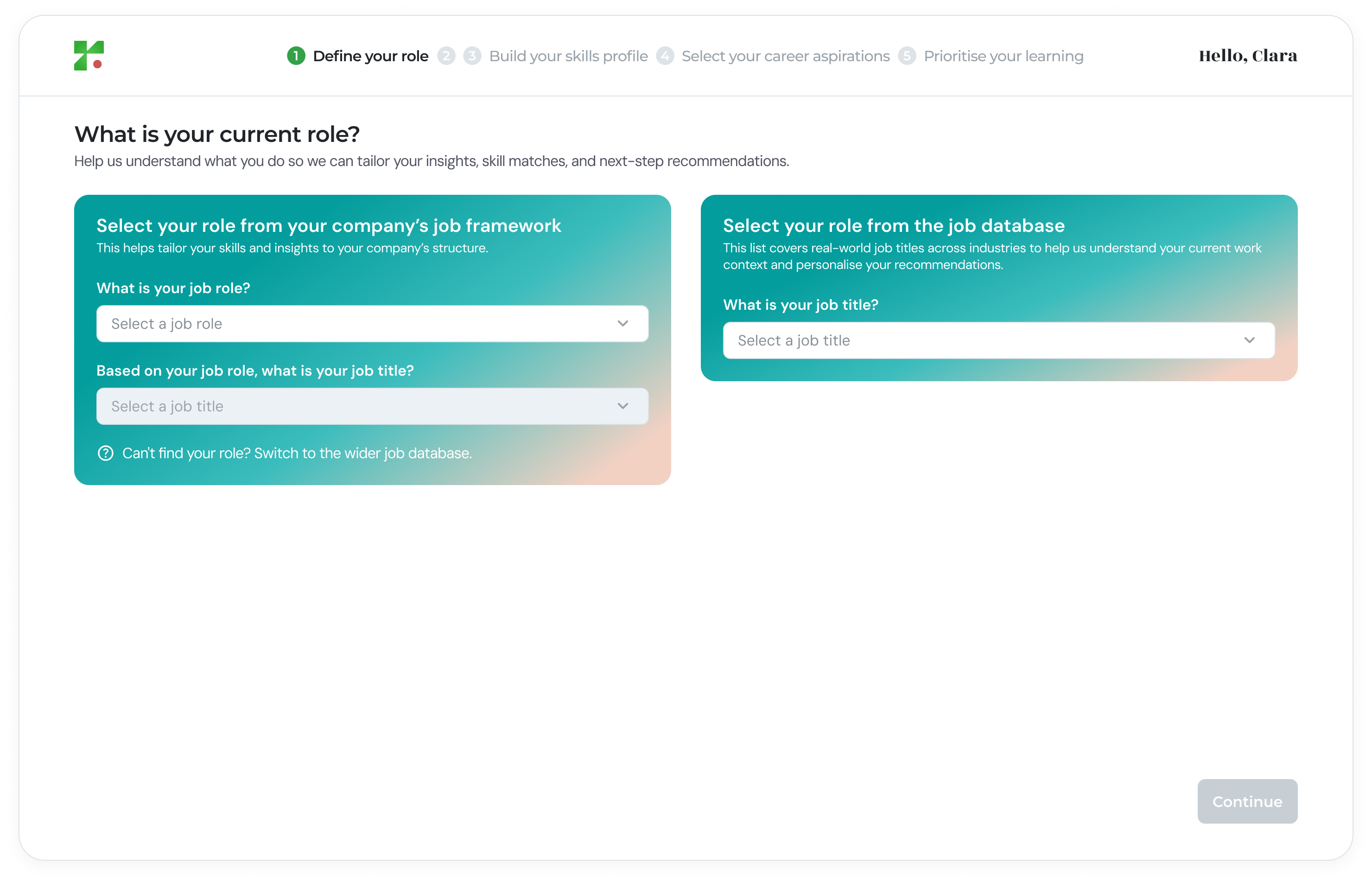 Candidates from outside the organisation. External match details may require unlocking.
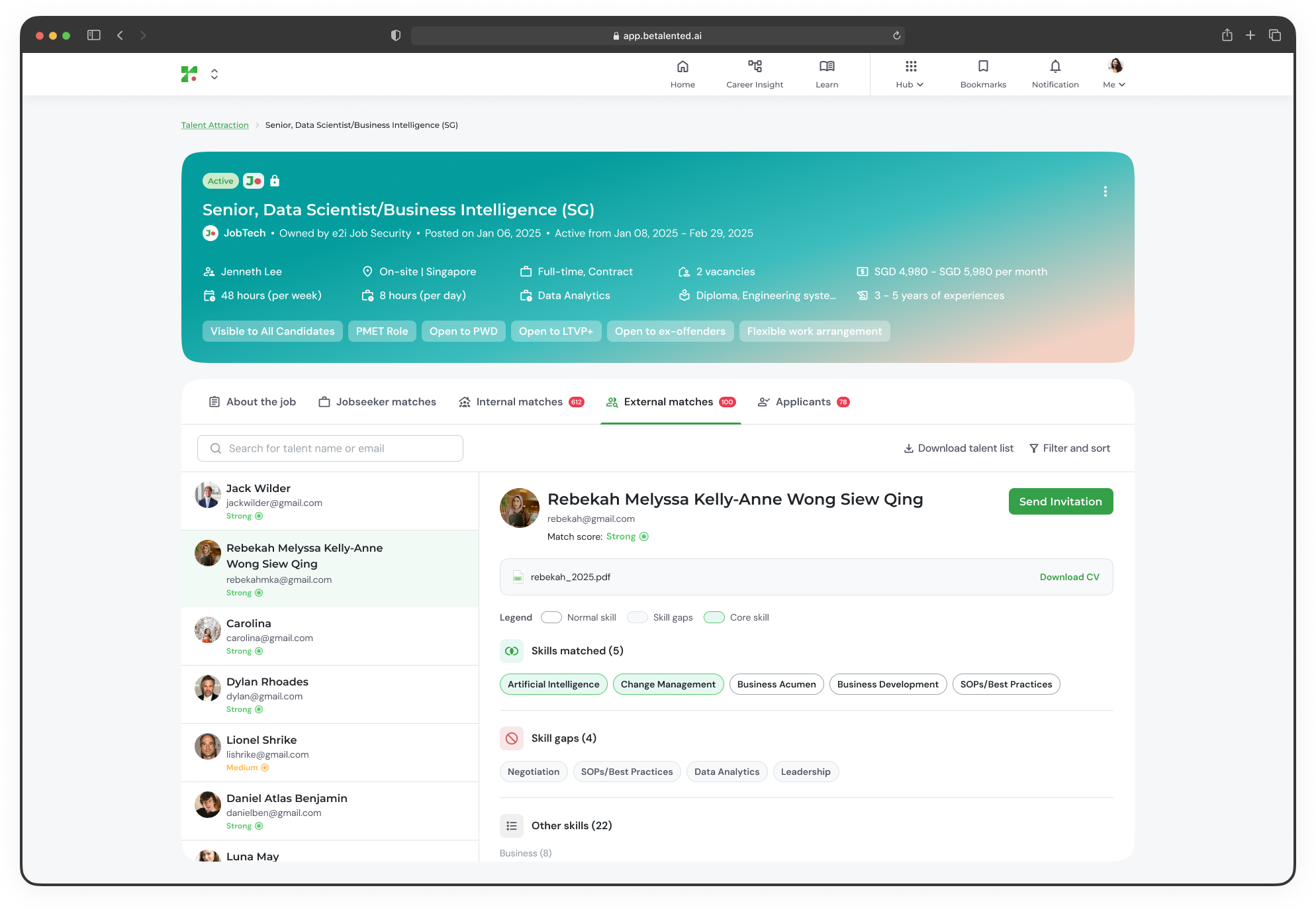 Viewing full external match profiles may incur a fee (e.g. \$50 per 100 matches). Contact your administrator for details on your plan.
***
## Invite talent to apply
When you find a strong match, you can invite them to apply directly.
From the matches list, click **Send Invitation** on the candidate's profile card.
A message template will appear. Customise the invitation message to suit the role and candidate.
Viewing full external match profiles may incur a fee (e.g. \$50 per 100 matches). Contact your administrator for details on your plan.
***
## Invite talent to apply
When you find a strong match, you can invite them to apply directly.
From the matches list, click **Send Invitation** on the candidate's profile card.
A message template will appear. Customise the invitation message to suit the role and candidate.
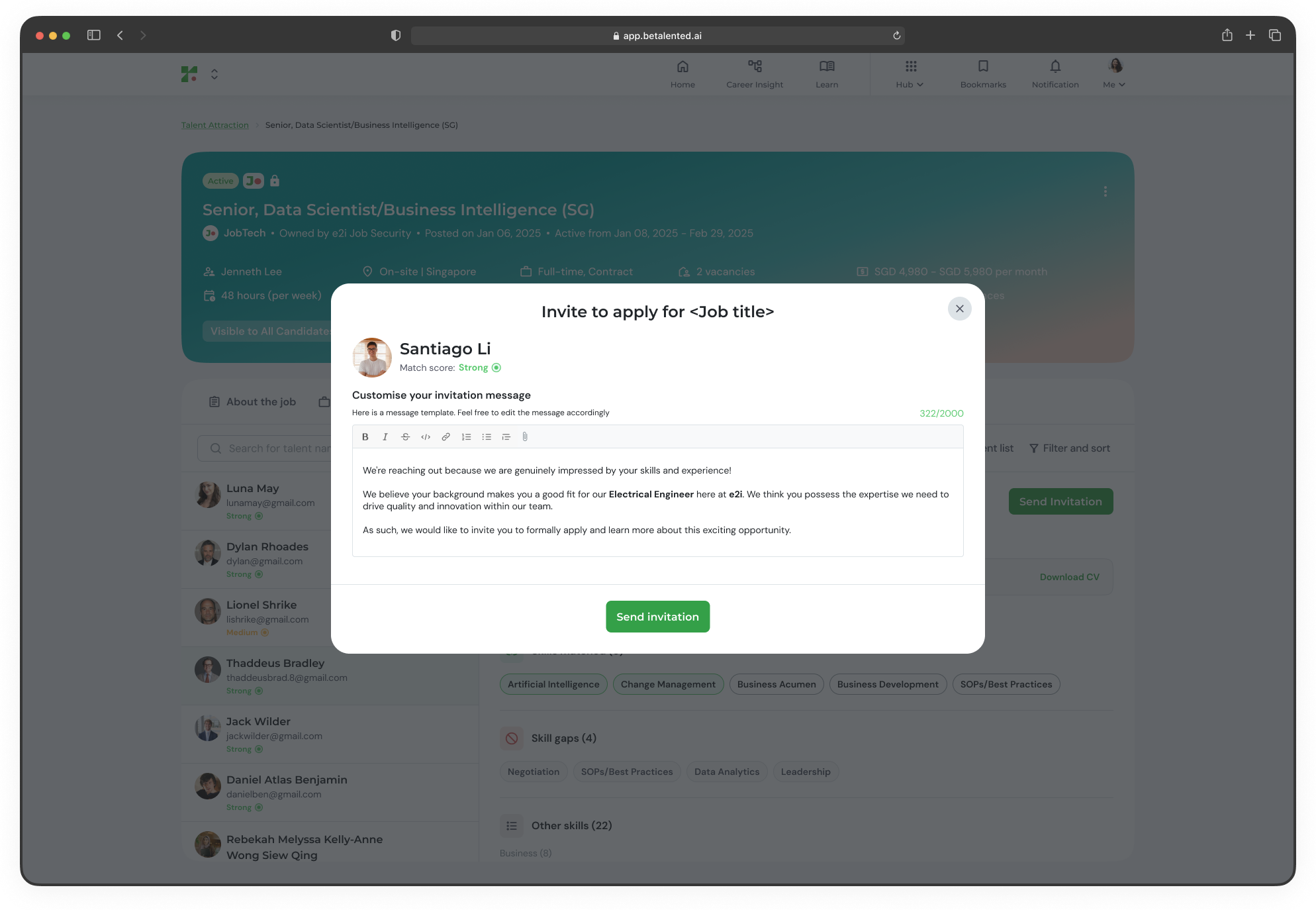 Click **Send**. The candidate will receive the invitation and you can track its status (including the timestamp of when it was sent).
***
## Review applicants
Manage candidates who have applied to your job post through a structured pipeline.
Click **Send**. The candidate will receive the invitation and you can track its status (including the timestamp of when it was sent).
***
## Review applicants
Manage candidates who have applied to your job post through a structured pipeline.
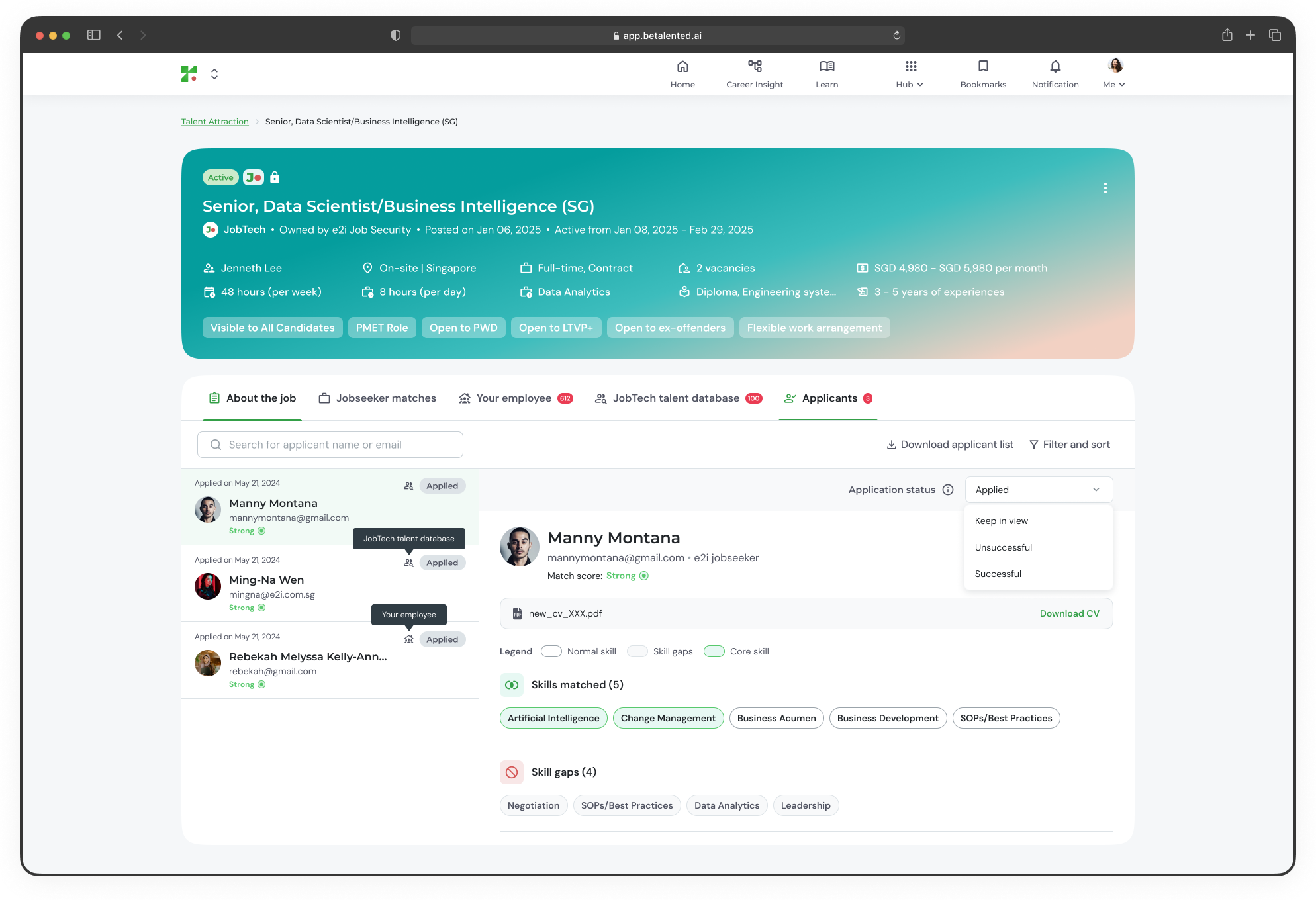 To move a candidate between stages, use the status dropdown on their profile card.
***
## Review applicants (e2i view)
After inviting candidates to apply, the talents who applied can be shortlisted/recommended to the Partner Employer.
To move a candidate between stages, use the status dropdown on their profile card.
***
## Review applicants (e2i view)
After inviting candidates to apply, the talents who applied can be shortlisted/recommended to the Partner Employer.
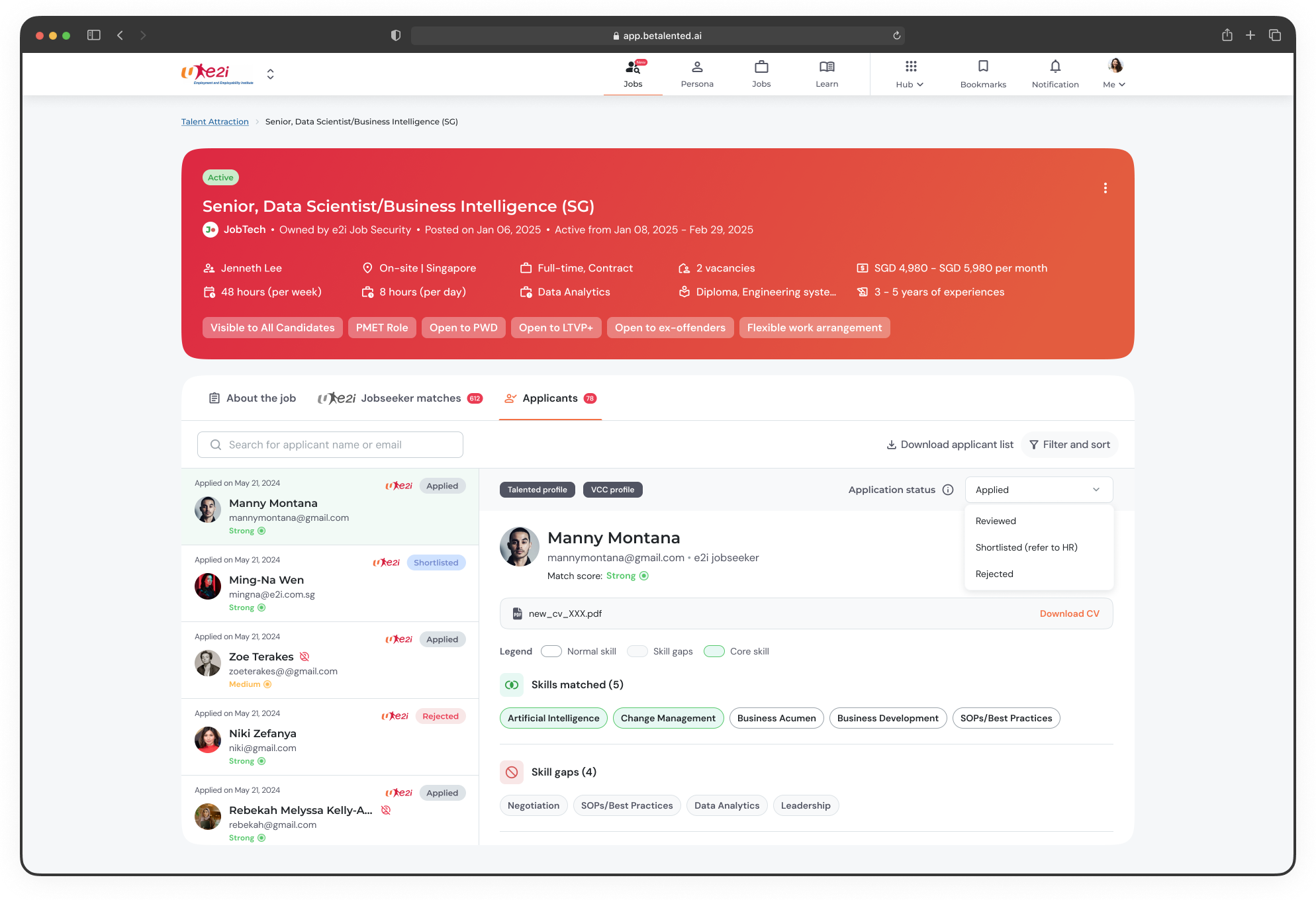 To move a candidate between stages, use the status dropdown on their profile card.
You will receive automated notifications if an applicant updates their profile after applying. A visual warning will appear if an applicant's profile becomes deactivated.
To move a candidate between stages, use the status dropdown on their profile card.
You will receive automated notifications if an applicant updates their profile after applying. A visual warning will appear if an applicant's profile becomes deactivated.