

View job details
Click on any job card from the Talent Attraction dashboard to open its detail page.
- Job header — Title, vacancy count, salary range, and requirements at a glance
- About the job — Full description and skill requirements
- Match and applicant tabs — Quick access to candidate pools
Review talent matches
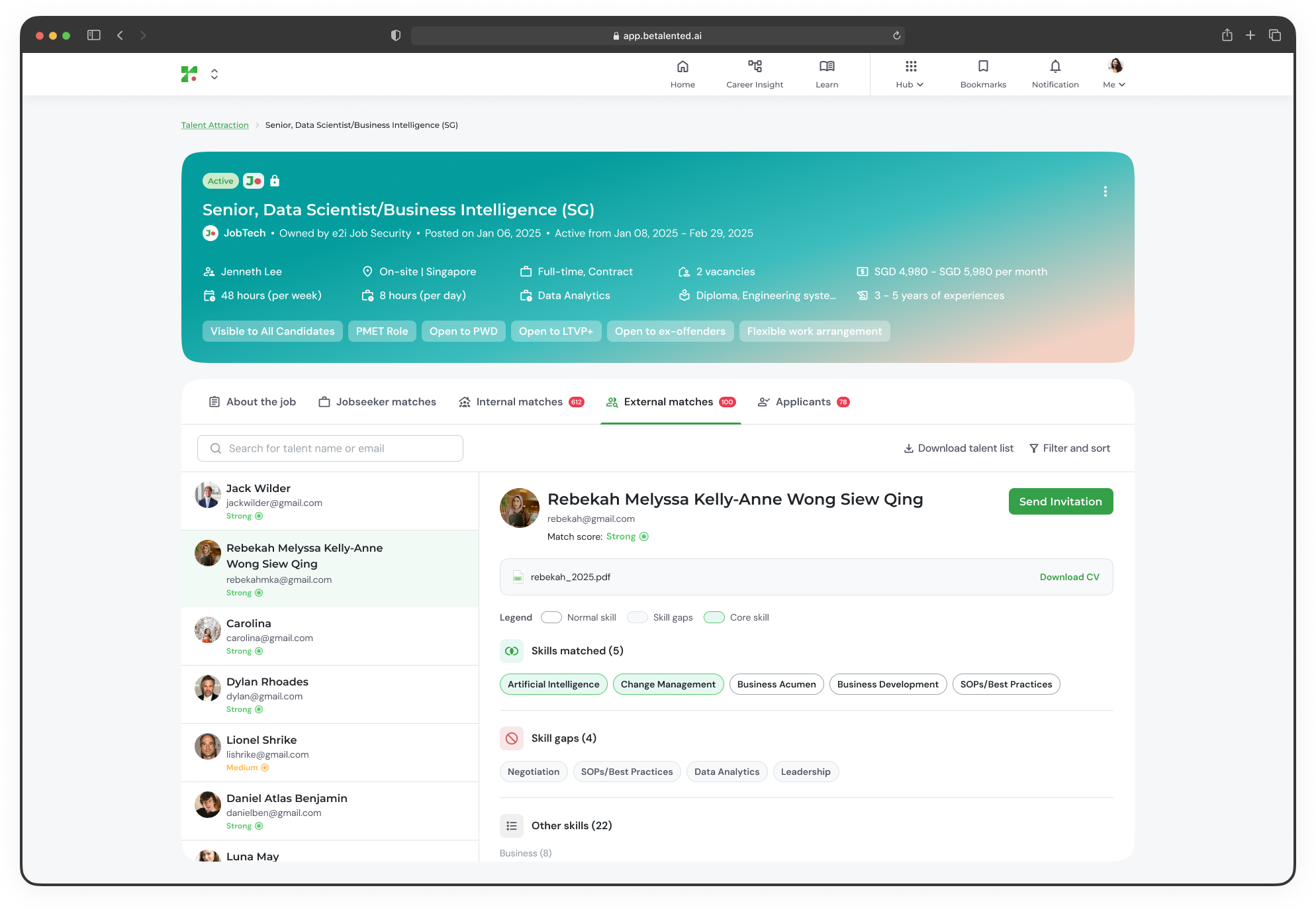
The platform identifies candidates whose skills align with your job requirements. Matches are split into two categories:- Jobseeker matches
- Your employees
- JobTech talent database
Jobs will be posted to e2i and automatically matched with the e2i talent pool. If this is an e2i exclusive job posting. Suitable candidates are currently being matched via the e2i team. So if you’re not a part of e2i Partner Employer, you will see this: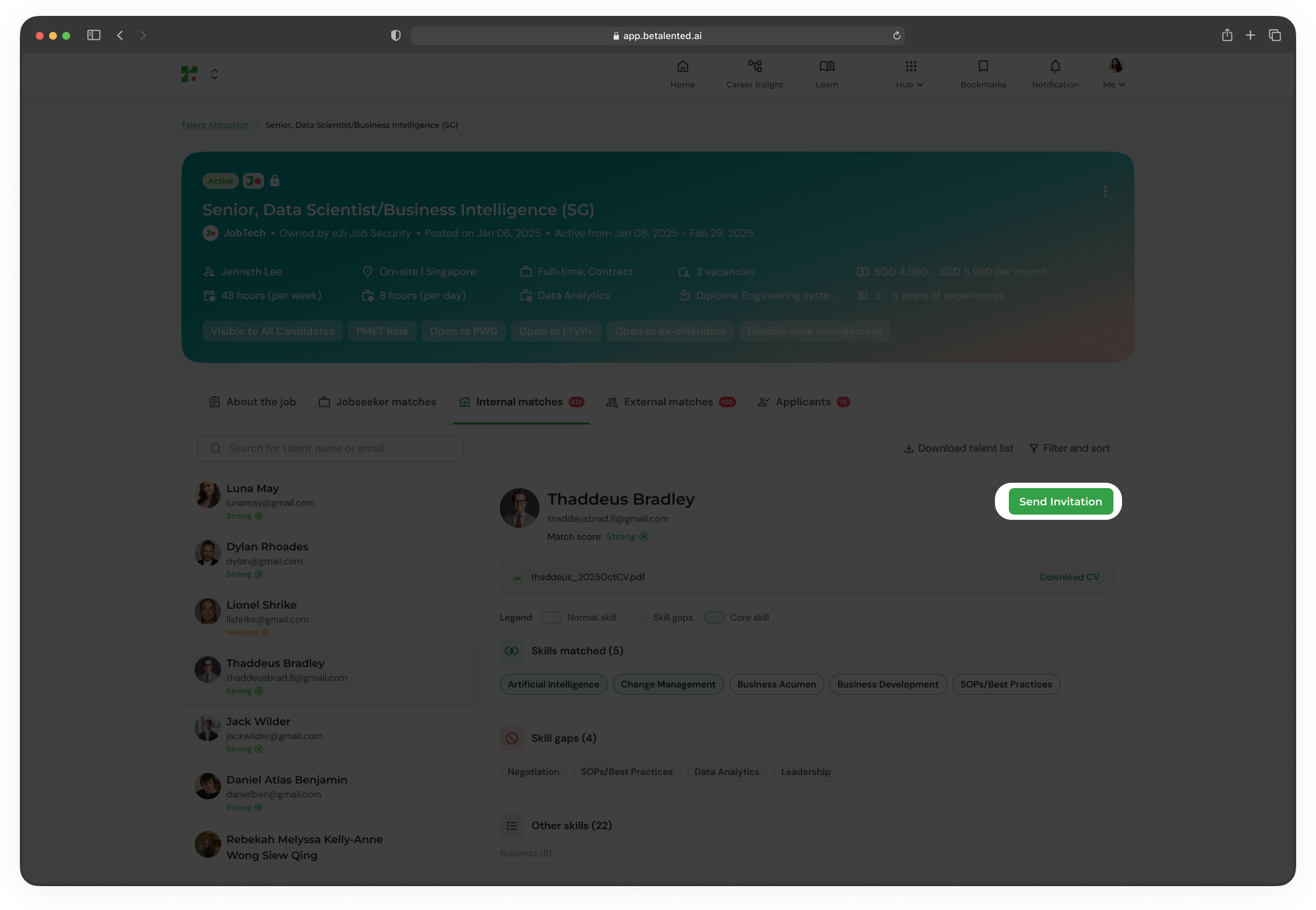
Invite talent to apply
When you find a strong match, you can invite them to apply directly.1
Select a candidate
From the matches list, click Send Invitation on the candidate’s profile card.
2
Customise the invitation
A message template will appear. Customise the invitation message to suit the role and candidate.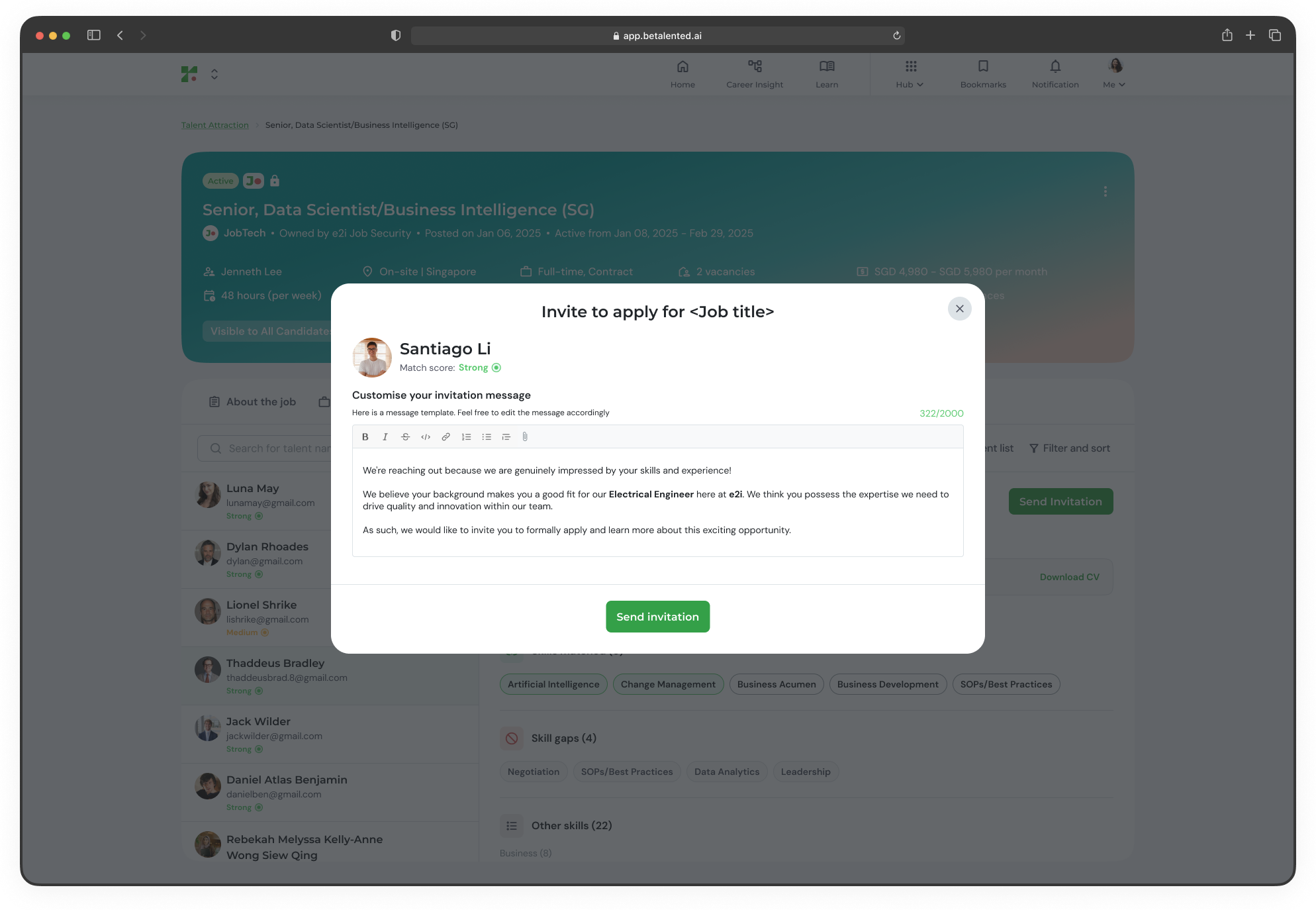
3
Send
Click Send. The candidate will receive the invitation and you can track its status (including the timestamp of when it was sent).
Review applicants
Manage candidates who have applied to your job post through a structured pipeline.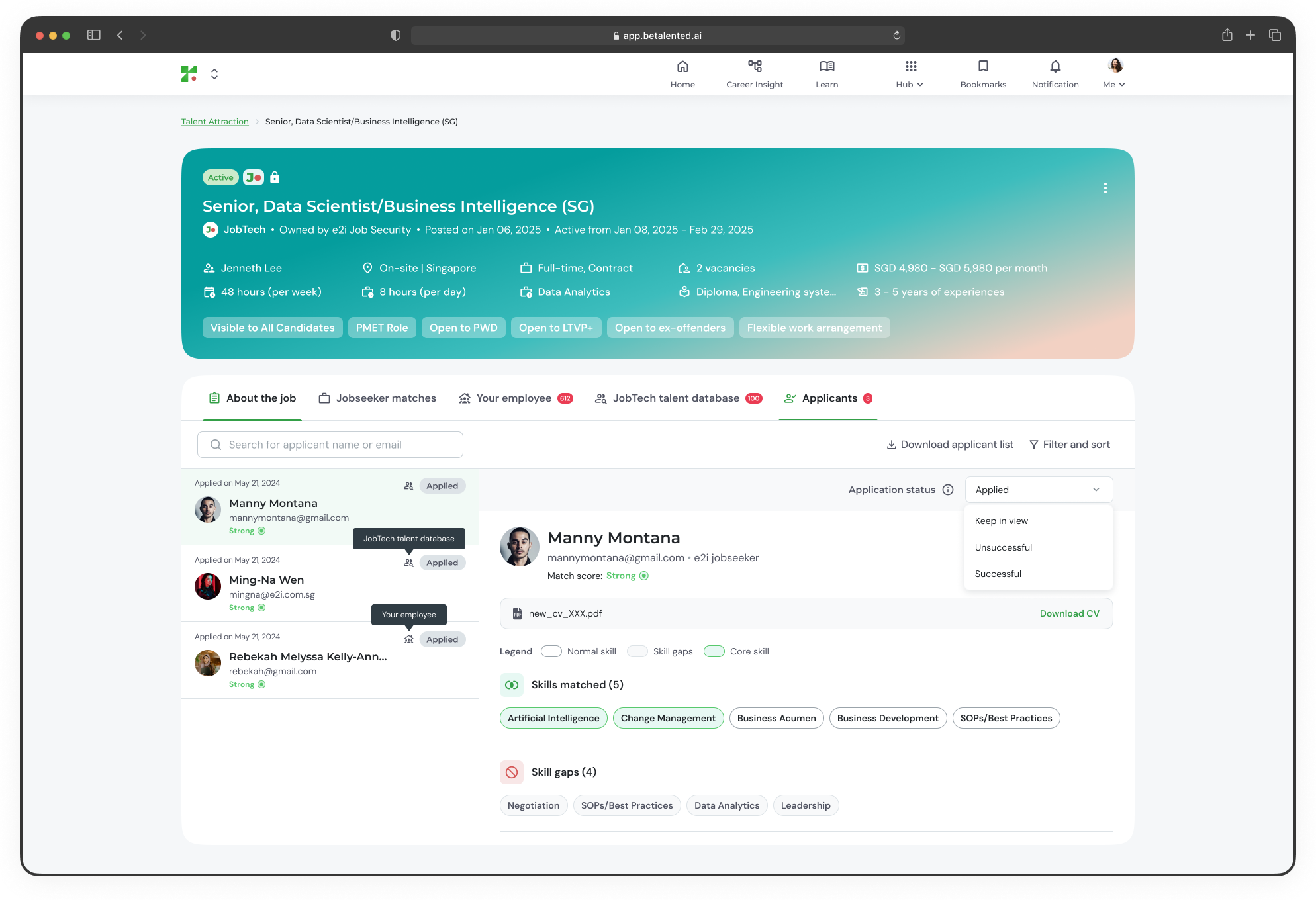
Review applicants (e2i view)
After inviting candidates to apply, the talents who applied can be shortlisted/recommended to the Partner Employer.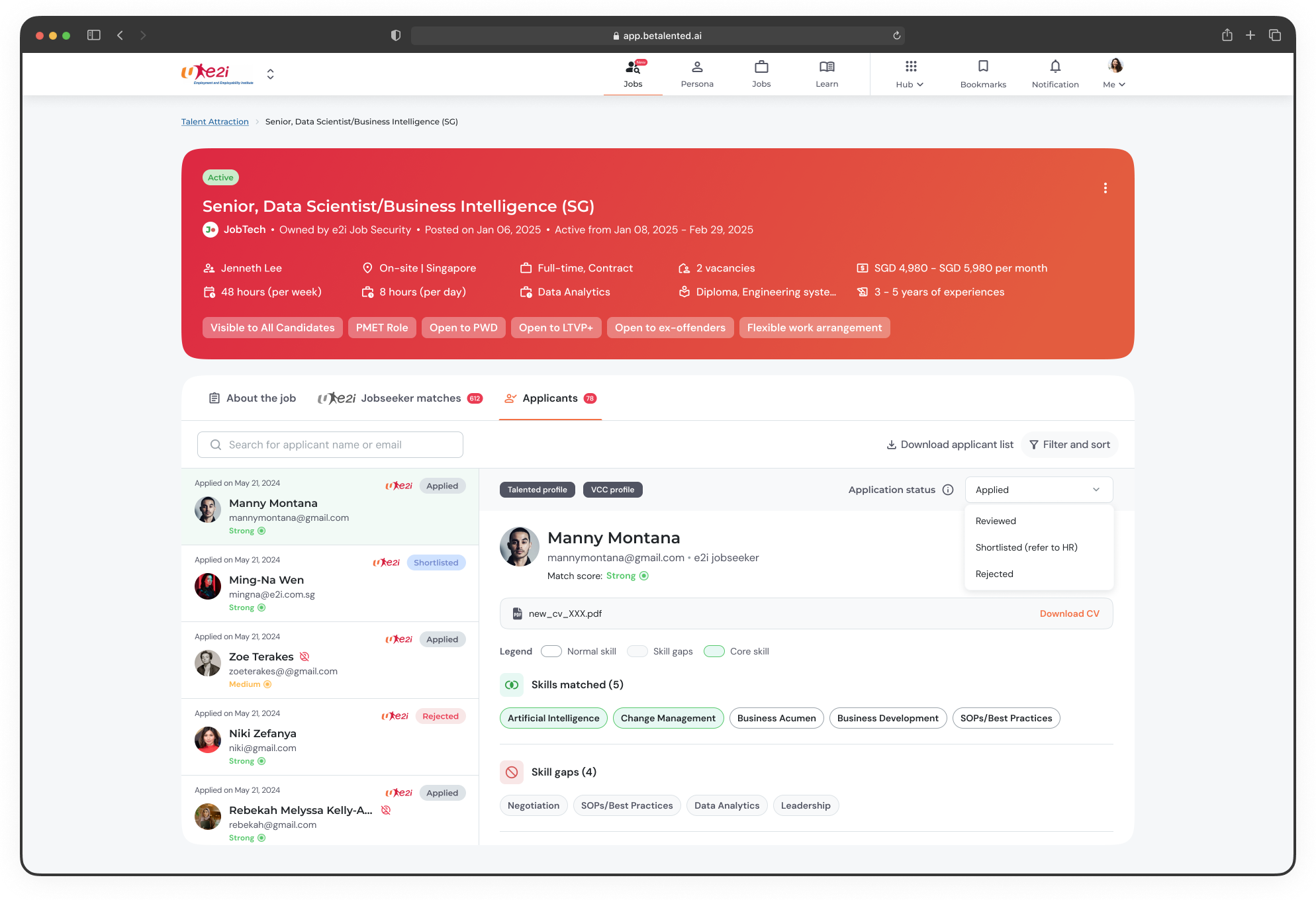
You will receive automated notifications if an applicant updates their profile after applying. A visual warning will appear if an applicant’s profile becomes deactivated.