

Types of gigs
Leadership Shadowing
Leadership Shadowing
Experience senior leadership first-hand. Leadership Shadowing gigs are short-term (up to 2 days) and allow you to observe how leaders approach strategic decision-making, communication, and planning.
Mentorship
Mentorship
Long-term development opportunities lasting 1–6 months. Mentorship gigs pair you with an experienced professional who guides your growth in a specific area.
Project
Project
Contribute to organisational projects over 1–6 months. Project gigs typically require 5–15% of your time and let you gain hands-on experience with cross-functional teams.
Role Shadowing
Role Shadowing
Observe a team or squad in action. Role Shadowing gigs are short-term (up to 2 days) and give you visibility into how another function operates day-to-day.
Explore recommendations
When you open the Gigs module, you will see curated gig recommendations based on your current role, aspired role, skills you want to learn, and popular gigs.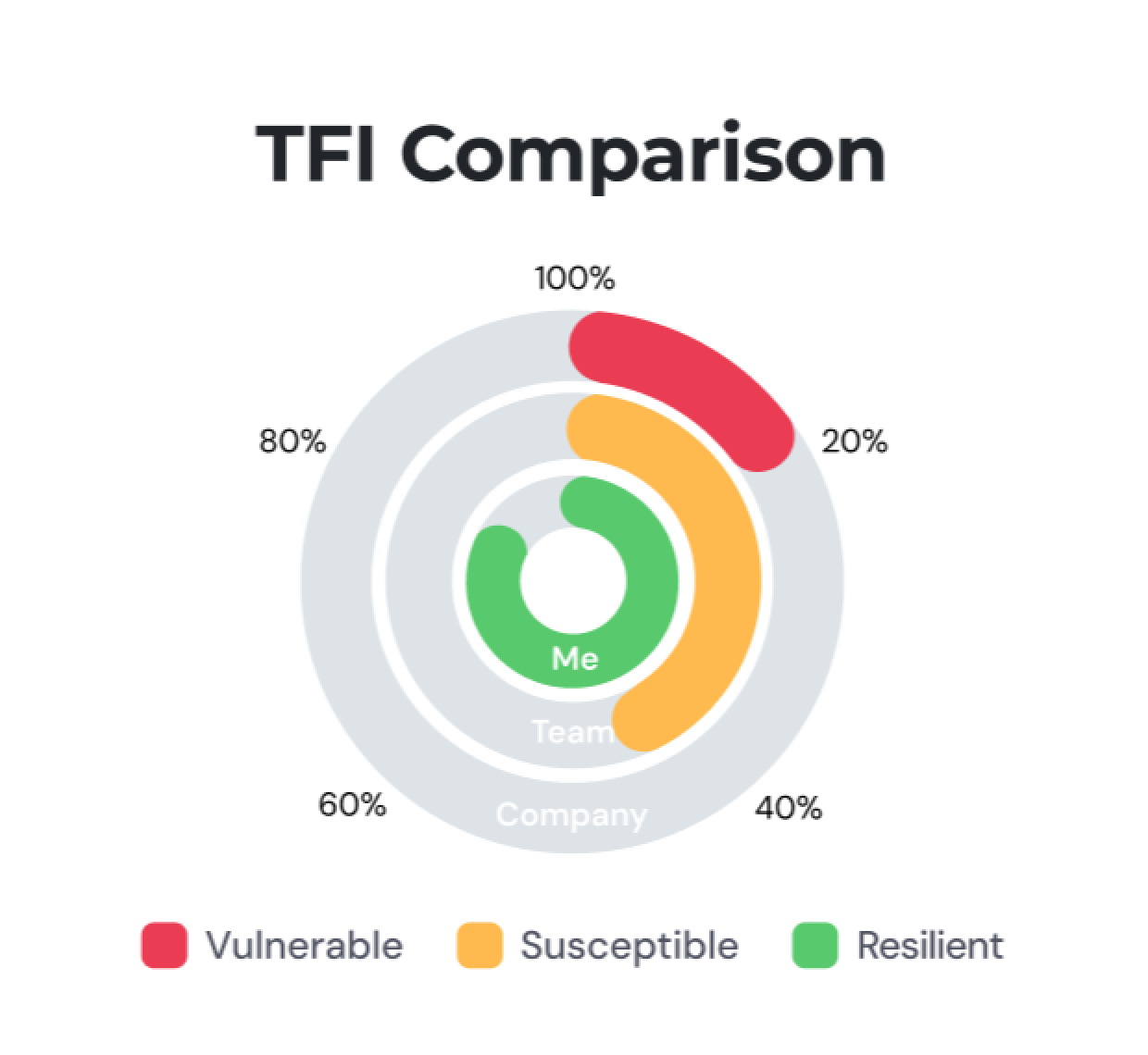
Based on your current skills
Based on your current skills
Roles that match the skills already in your profile. These are positions where you have a strong alignment today.
Based on your aspired roles
Based on your aspired roles
Roles that align with the career aspirations you selected during onboarding or updated in your profile.
Browse all opportunities
Switch to the Browse All Opportunity tab to view the full catalogue of available gigs across the organisation. View match scores to see how well each gig aligns with your profile
Apply for a gig
1
Select a gig
From the recommendations or browse tabs, click on a gig card to view its details.
2
Review the opportunity
Check the gig description, activities, time commitment, host details, and available slots.
3
Apply
Click Apply and select your preferred time slot. Submit your application for the host to review.
Your gig application
Track the status of gigs you have applied for from the Your gig application tab.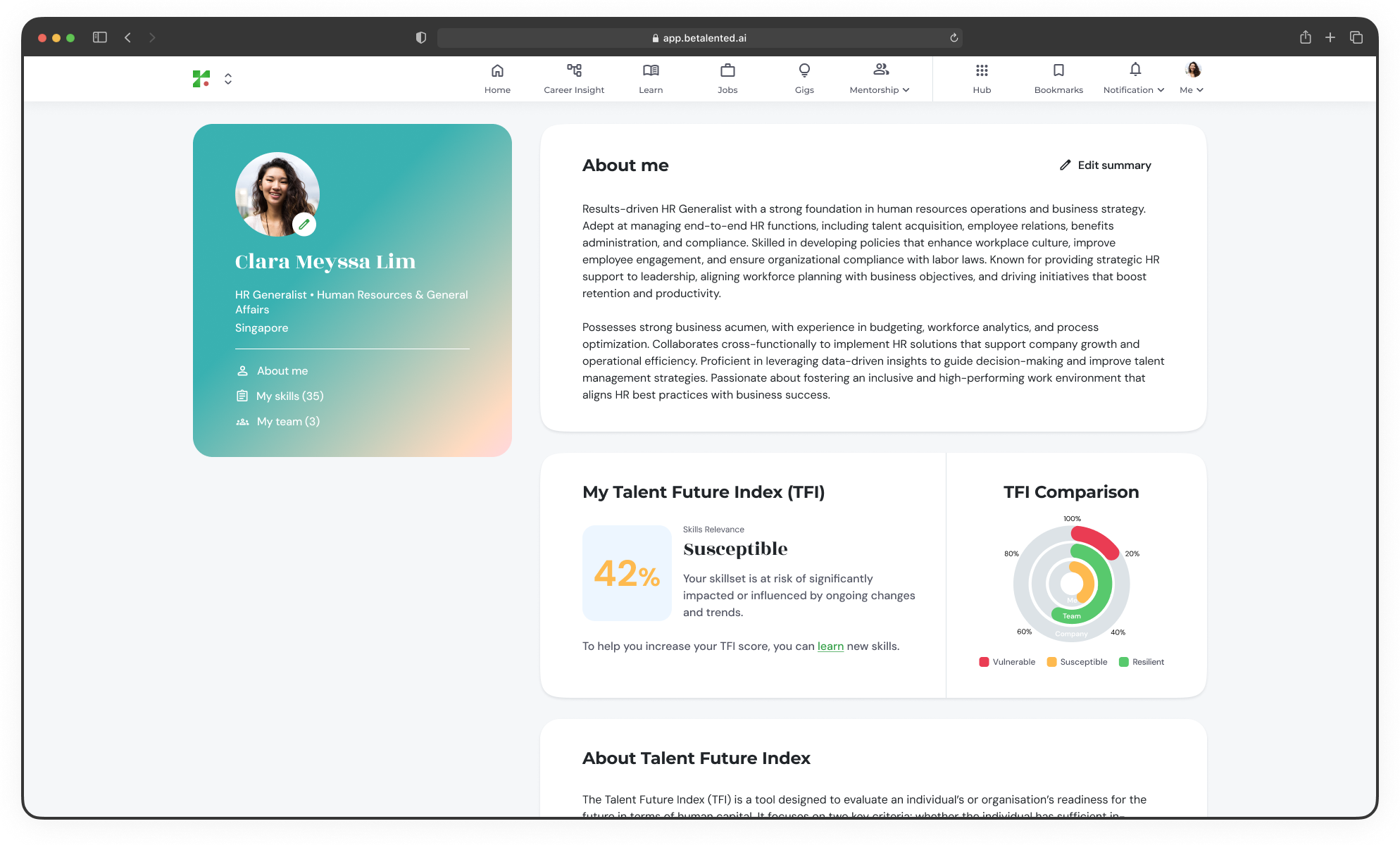
- Under Review
- Approved
- Unsuccessful
- Completed
Applications currently being reviewed by the gig host.
Provide feedback
After completing a gig, you will be prompted to provide feedback on your experience.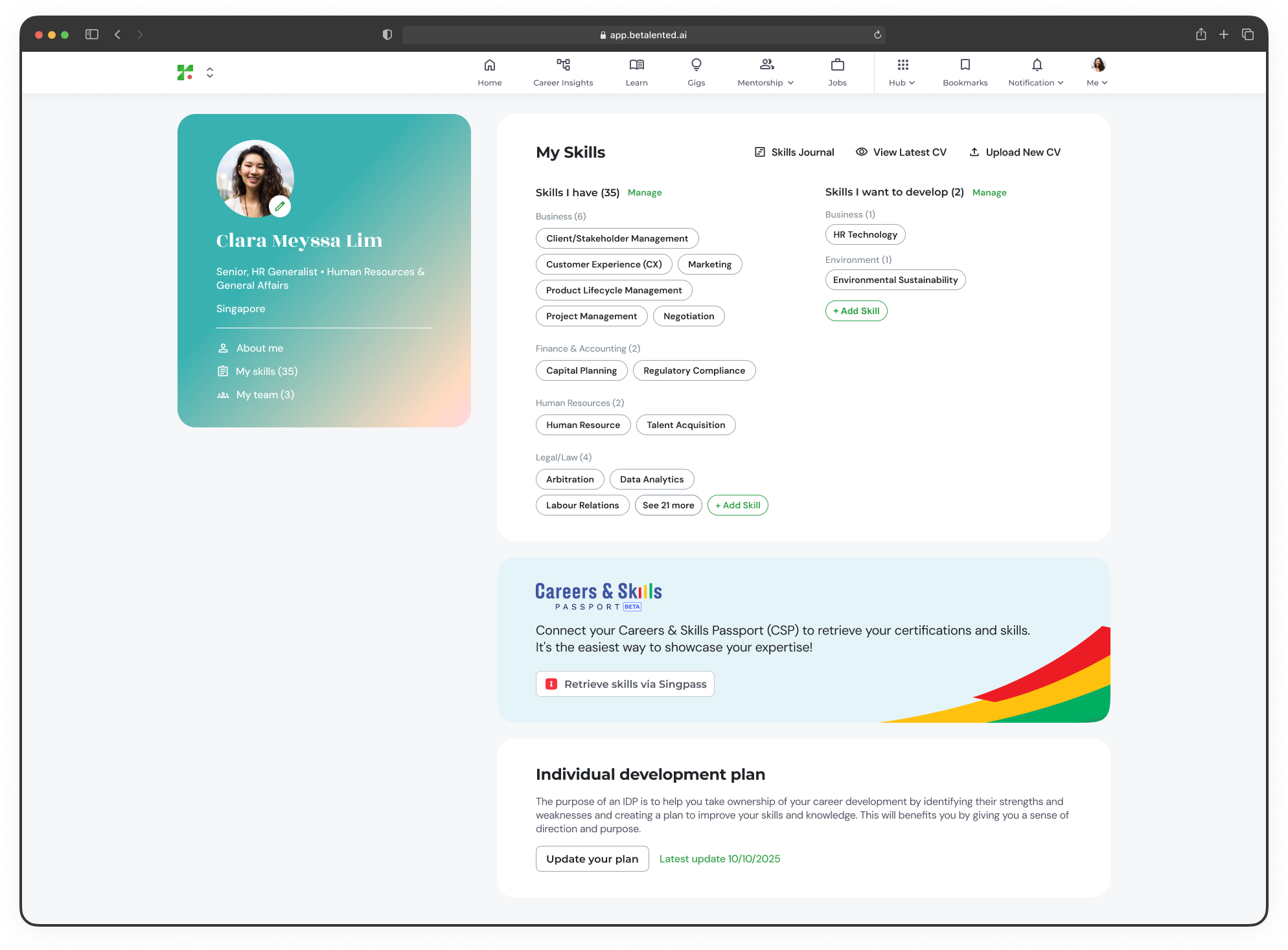
1
Confirm participation
Confirm whether you were able to participate in the opportunity on your applied slot date.
2
Share your feedback
If you could not attend, select the reason (e.g. date rescheduled, unable to contact host, personal commitments) and add any comments.
3
Submit
Click Submit to complete your feedback.
Creating a gig (for hosts)
This section is for users with a TM Gig Creator role.
Create an opportunity
1
Select gig type
From the Gigs page, click Create an opportunity and choose from Leadership Shadowing, Mentorship, Project, or Role Shadowing.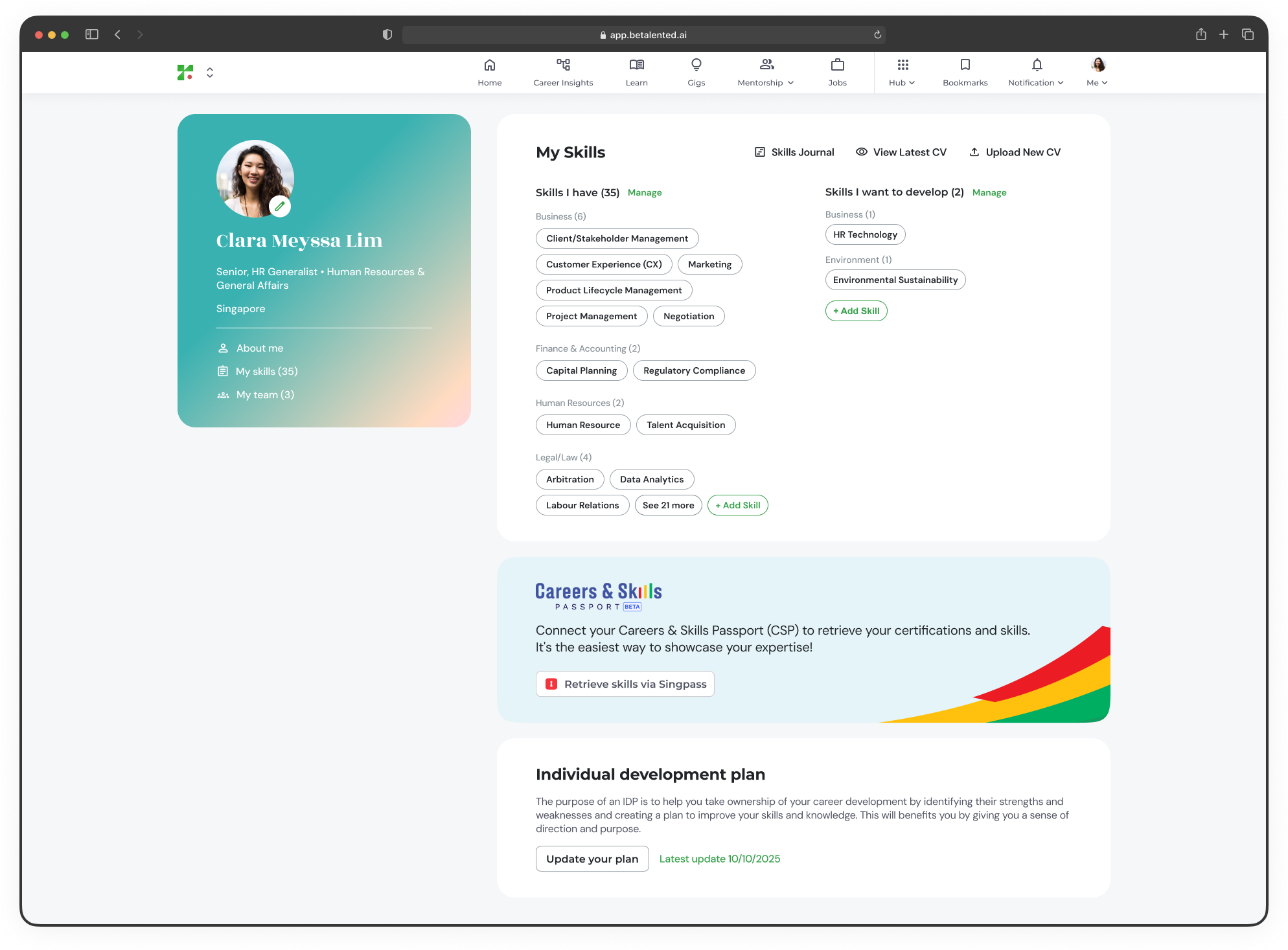
2
Define the purpose
Fill in the opportunity details: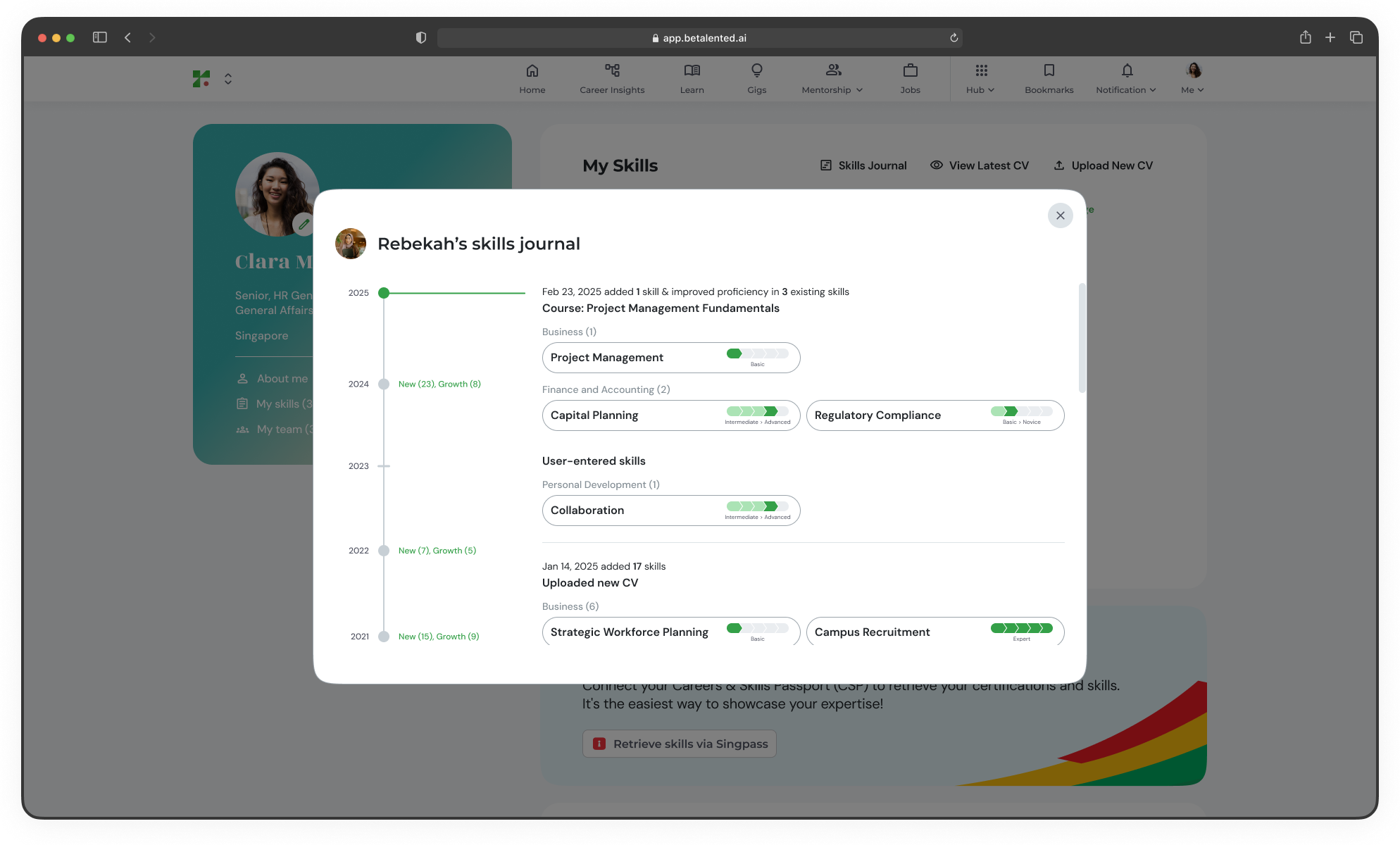
3
Input gig details
Configure the timeframe, number of participants, commitment level, mode of communication (e.g. Physical, Virtual, or Mixed Session), and host details.
Gigs you’re hosting
As a gig host, you can view all your created gigs under the Gigs you’re hosting tab.
- View gigs categorised by type (e.g. Project, Role Shadowing)
- See the number of awaiting responses and applicants
- Click Review applicants to manage submissions
Opportunity details
Click on any gig to view its full details, including:- Opportunity description and learning objectives
- Host details and available slots
- Tabs for Awaiting Review and Scheduled Sessions
If an opportunity has ended, a short notice will be displayed and editing will be restricted.
Review applicants (host view)
From the Awaiting Review tab, review each applicant’s profile:
- View the applicant’s Match Score and Skills Profile
- See why they are interested in the opportunity
- Shortlist or Decline each applicant
Provide feedback (host view)
After a gig session is completed, hosts can provide feedback for each participant from the Provide Feedback tab.
- View accepted attendees grouped by slot
- Click Provide Feedback or Edit Feedback for each participant